

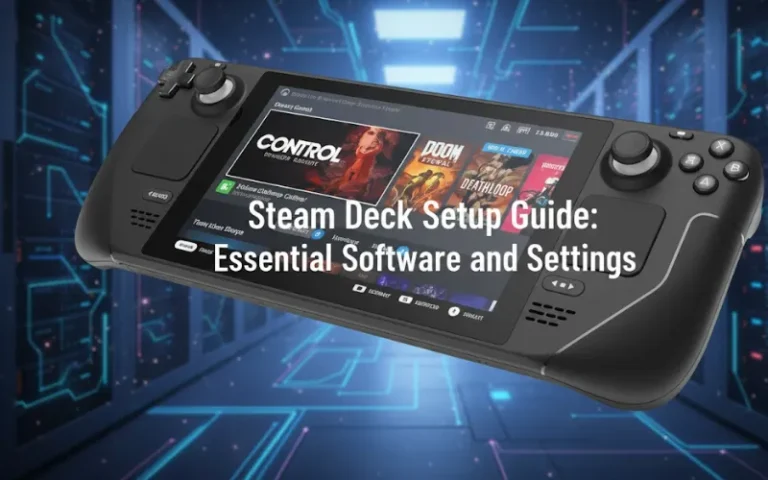
Complete Steam Deck Setup Guide: From Unboxing to First Game
I recall unboxing my Steam Deck last year, its parts spread out before me on a table, and feeling totally daunted. The contraption seemed straightforward, yet it took me three full days of trial and error to get the damn thing set up right. Since then, I’ve helped a dozen friends get theirs set up, and I’ve learned just what new owners need to know in order to avoid the frustration I had.
This guide will take you from your very first power on to more advanced customizations. Whether your Steam Deck just arrived or you’ve been wrestling with its performance, these tested settings and software suggestions will have you gaming perfectly within an hour.
What You Need Before Starting Your Steam Deck Setup
Do not power on your Steam Deck. Trust me on this. It also prevents you from being interrupted by tons of things while setting up.
Unboxing Checklist
Your Steam Deck box should include the machine, a 45W USB-C power adapter and carrying case. Verify the power adapter is compatible with your country’s plug type. Valve provides the appropriate adapter for your country’s electrical outlet, but check before you have to use it.
The case itself feels low-end but does its job well. And I have actually dropped mine twice without any damage. Store the box and foam inserts for potential RMA situations or if you decide to sell it.
Required Accessories You Actually Need
MicroSD Card: Unless you bought the 512GB version and only play indie games, you’re going to need more space. Get a 512GB or 1TB A2-rated card with minimum U3 speed class. I have a SanDisk Extreme 1TB and games load almost as fast as internal.
Samsung EVO Select cards are excellent as well. Avoid cheap no-name brands. $5 savings does not justify corrupted game files.
Screen Protector: The Steam Deck’s screen is more susceptible to scratches than newer phones. A tempered glass protector should be applied before using the first time. I learned this after getting a permanent scratch from my wedding ring the first week.
USB-C Hub (Optional but Useful): If you want to use Desktop Mode, you can make the Steam Deck act like a true PC with a USB-C hub that has HDMI out, USB-A ports and Ethernet. Not a must for gaming-only sessions but handy to plug and unplug for emulation setup and file transfers.
Creating Your Steam Account
If you don’t have a Steam account, make one on your phone or computer before you even touch the Steam Deck. The on-screen keyboards are fine, but typing long passwords and emails with thumbsticks is a drag.
Write down your login credentials. The Steam Deck will prompt you for them when setting up, and muddling through a password manager is no fun on the device’s keyboard — it adds at least 10 minutes to the process.
First Time Setup: From Power On to First Game
Press the POWER button for 3 seconds. The Steam splash screen is displayed and a boot up animation plays (taking around 45 seconds on initial power up).
Language and WiFi Configuration
The setup wizard appears immediately. Select your language and region. This impacts your keyboard layout and store currency; choose wisely. You can adjust these later but it’s irritating.
Connect to WiFi next. The Steam Deck will support 5GHz networks for quicker downloads. If you have a dual-band router, try to connect your Steam Deck to the 5GHz network rather than the more common 2.4GHz. Game downloads when using 2.4GHz are excruciatingly slow.
WiFi troubleshooting: If you don’t see your network, your router may be using WiFi 6E or a DFS (dynamic frequency selection) channel that the Steam Deck doesn’t support. Change your router to a regular 5GHz channel or temporarily connect on 2.4GHz.
Steam Account Login and Initial Updates
Enter your Steam credentials. If you have Steam Guard active (you should), find the verification code in your phone or email. The code is going to expire in a few minutes, so don’t dawdle here.
The system updates begin downloading right away on the Steam Deck. This initial update generally requires between 15 and 30 minutes (depending on your internet quality). Let it finish completely. Do not skip updates or force restart. I ended up bricking my first unit and had to RMA.
Brew some coffee or watch a YouTube video. No action is involved for the update process.
SteamOS Installation Completion
Once updated, the Steam Deck automatically reboots and guides you through a short tutorial on the device’s button layout. Do it even if you’re experienced with controllers. The Steam Deck has its own controls, the back paddles and trackpads, that don’t function as expected.
The tutorial takes three minutes. Complete it.
Essential Steam Deck Settings for Optimal Performance
Press the Quick Access key (the three dots just below the right trackpad). 90% of the settings you’ll adjust on a regular basis live here.
Display Settings You Should Change Immediately
Navigate to Settings > Display. Here are the tweaks I’m making on every Steam Deck I set up:
Refresh Rate: Start at 60Hz. You can decrease this per-game later to maximize battery life. Some games look the same at 40Hz but run for an hour longer.
Brightness: Default brightness is too high for gaming in a dark room. I use it at 40% on a daily basis and increase to 70% for outdoor use. Maximum brightness drains battery fast.
FSR (FidelityFX Super Resolution): Keep this off at a global level. Enable it per-game when needed. FSR enhances performance but introduces some slight blurring. It doesn’t improve every game.
Performance Menu: The Most Important Settings
Press the Quick Access button again and look for the battery icon. This opens the Performance menu. These settings dramatically impact your gaming experience and battery life.
| Setting | Recommended Value | Purpose |
|---|---|---|
| Framerate Limit | 60 FPS (adjust per game) | Prevents unnecessary GPU usage |
| Refresh Rate | Match framerate | Eliminates screen tearing |
| TDP Limit | 15W (adjust per game) | Controls heat and battery drain |
| GPU Clock Frequency | 1600 MHz (max) | Leave at max unless overheating |
| Scaling Filter | FSR or Linear | Use FSR for demanding games |
| Half Rate Shading | Off | Enable only if desperate for performance |
Understanding TDP (Thermal Design Power): This controls how much power the APU can draw. Lower TDP means longer battery life but reduced performance. Indie games run perfectly at 8W to 10W TDP, giving you 5+ hours battery. AAA games need the full 15W.
I use 8W for Hades, 11W for Stardew Valley, and 15W for Elden Ring. Experiment per game.
Battery Life Optimization That Actually Works
The Steam Deck’s battery is rated for 2 to 8 hours. Here’s how I manage to consistently get over 4 hours even in demanding games:
Limit FPS to 30 or 40, not 60. Your eyes adapt after 10 minutes. The battery life boost is huge. 40FPS at 40Hz refresh feels smoother than expected.
Lower your TDP to the lowest at which you get the desired framerate. Use performance overlay to check. If your game is still hitting 40 FPS at 11W you’re throwing away battery to run at 15W.
Lower in-game graphics settings. Medium textures vs Ultra textures is virtually indistinguishable on a 7″ screen. The battery savings are substantial.
Audio Configuration for Gaming Headsets
The Steam Deck’s integrated speakers are a lot better than you might anticipate, but you’ll still want a pair of headphones when it comes time to get lost in gaming or if others happen to be around.
It plays nice with Bluetooth as well, for those modern headphones. Hold the Steam button, navigate to Settings > Bluetooth and pair your headset. I use my gaming headset, mainly because it’s also compatible with my PC, and the audio quality (even via Bluetooth) is solid.
Bluetooth Audio Delay: There is some delay in the audio in some games while using Bluetooth. For rhythm games, or competitive shooters, use wired USB-C headphones or one with a 3.5mm jack adapter.
The headphone jack location (top of device) is awkward for handheld play. Bluetooth eliminates the dangling cable issue.
Gaming Mode vs Desktop Mode: When to Use Each
This confused me more than anything else when I started. The Steam Deck has two completely different interfaces, and knowing when to use each matters.
What is Desktop Mode
Desktop Mode is a full Linux desktop environment (KDE Plasma). It looks and functions like a normal PC. You have a taskbar, file browser, web browser, and can install any Linux software.
Gaming Mode is the default Steam Big Picture interface. It’s designed for controller navigation and feels like a console. This is where you spend 95% of your time.
Switching Between Modes
To enter Desktop Mode: Press the Steam button, go to Power, select “Switch to Desktop.” The Steam Deck reboots into Linux desktop in about 20 seconds.
To return to Gaming Mode: Double-click “Return to Gaming Mode” on the desktop. Another 20-second reboot.
You can also hold the power button and select the mode from the boot menu, but the previous method is easier.
Desktop Mode Use Cases
You need Desktop Mode for:
Installing non-Steam games from other stores (Epic, GOG, itch.io)
Setting up emulators and ROMs
Browsing the web properly (Gaming Mode browser is terrible)
Transferring files via USB
Installing community software like Decky Loader
Adjusting system-level settings not available in Gaming Mode
I use Desktop Mode once per week for about 30 minutes total. New users might spend more time here initially during setup, then rarely touch it.
Desktop Mode control tips: The right trackpad controls the mouse cursor. Right trigger is left click. Left trigger is right click. The Steam button + X opens the on-screen keyboard. These controls feel weird initially but become natural quickly.
Must Have Software for Steam Deck
These third-party programs dramatically improve the Steam Deck experience. All are free and community-supported.
Decky Loader: The Plugin Manager
Decky Loader adds a plugin system to Gaming Mode, giving you access to hundreds of quality-of-life improvements without entering Desktop Mode constantly.
Installation: Switch to Desktop Mode. Open the Discover store (the shopping bag icon). Search for “Decky Loader” and install it. Return to Gaming Mode. You’ll see a new plug icon in the Quick Access menu.
Essential Decky plugins I use:
| Plugin Name | What It Does |
|---|---|
| ProtonDB Badges | Shows game compatibility ratings directly in your library |
| PowerTools | Advanced CPU/GPU controls beyond default settings |
| Animation Changer | Custom boot animations and themes |
| Storage Cleaner | One-click shader cache and compatdata cleanup |
| Bluetooth | Better Bluetooth device management |
PowerTools alone justifies installing Decky. It lets you set per-core CPU frequencies and disable SMT for better battery life on specific games.
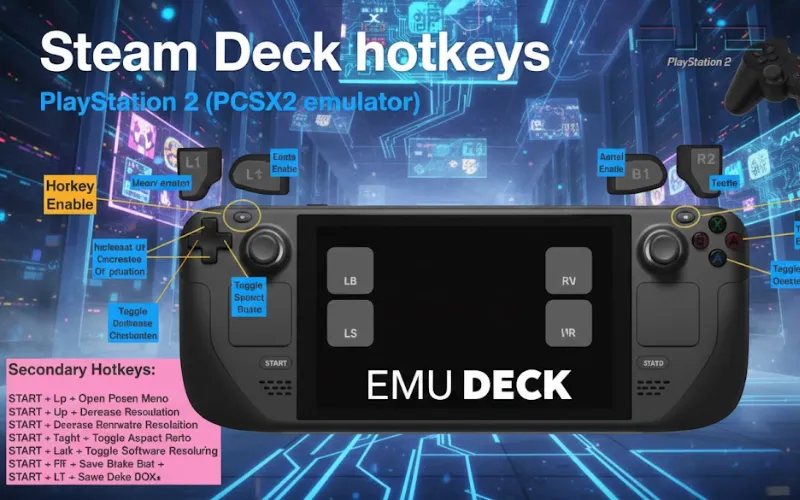
EmuDeck: Emulation Made Simple
EmuDeck installs and configures every major game emulator automatically. Without EmuDeck, setting up RetroArch, Dolphin, PCSX2, and other emulators takes hours of configuration. EmuDeck does it in 15 minutes.
Installation process:
Switch to Desktop Mode
Open Firefox browser
Go to emudeck.com
Download and run the installer
Select Easy Mode (trust me, don’t use Expert Mode initially)
Point it to your SD card for ROM storage
Wait 10 to 15 minutes for downloads
After installation, you get Steam ROM Manager which adds all your emulated games to your Steam library with custom artwork. They appear in Gaming Mode just like native Steam games.
I’ve played through Pokemon Emerald, Wind Waker, and Persona 4 on my Steam Deck using EmuDeck. Performance is flawless.
ProtonDB: Your Compatibility Reference
ProtonDB is a community database rating how well Windows games run on Linux through Proton. Before buying any game, check ProtonDB to see if it actually works on Steam Deck.
Install the browser extension in Desktop Mode’s Firefox. Or just bookmark protondb.com and check it on your phone before purchases.
Games are rated Borked, Bronze, Silver, Gold, or Platinum. Only buy Gold or Platinum rated games unless you enjoy troubleshooting. Silver games usually work with tweaks. Bronze and Borked games are gambles.
The Decky ProtonDB plugin shows these ratings directly in your library, which is incredibly convenient.
Heroic Games Launcher: Epic and GOG Games
Heroic Games Launcher lets you download and play games from Epic Games Store and GOG without using their Windows clients.
Install via Discover store in Desktop Mode. Sign into your Epic and GOG accounts. Download games. Heroic automatically adds them to Steam through shortcuts.
I claimed every free Epic game for two years. About 60% run perfectly on Steam Deck through Heroic. The rest have issues or don’t work at all.
Free Epic games I’ve confirmed working: Remnant: From the Ashes, Control, Prey, Death Stranding. All run great.
Storage Management and SD Card Setup
Storage fills fast. A single AAA game can consume 100GB. Proper storage management prevents constant shuffling.
Formatting Your SD Card Correctly
Insert your microSD card before first boot if possible. The Steam Deck auto-formats it during setup.
If you’re adding a card later: Settings > Storage. The Steam Deck detects the card and offers to format it. Accept. This wipes everything on the card, so backup any existing data first.
The Steam Deck uses ext4 filesystem for SD cards. This is Linux-native and performs better than exFAT or NTFS. However, you can’t use the SD card in Windows without special software.
SD card speed matters. Games installed to slow SD cards load significantly slower and may stutter during asset streaming. I tested this extensively. A2-rated cards make a noticeable difference over A1.
Installing Games to SD Card
When downloading games, Steam asks where to install. Choose your SD card. The installation process is identical to internal storage.
You can move games between internal and SD storage: Library > Game > Manage > Properties > Installed Files > Move Install Folder.
Performance difference: Loading screens are 2 to 5 seconds longer from SD card compared to internal SSD. Gameplay performance is identical once loaded. I keep my most-played games on internal storage and everything else on SD.
Shader Cache Management
Shader caches improve performance after initial compilation but consume storage aggressively. A single game’s shader cache can reach 5GB to 10GB.
Clear shader caches periodically: Settings > Storage > Other. Delete shader cache for games you don’t play anymore.
The Storage Cleaner Decky plugin automates this. It shows shader cache sizes per game and lets you delete them with one click.
Games recompile shaders on next launch, causing slight stuttering for the first few minutes. Worth it for the storage space recovered.
Game Compatibility and Proton Settings
Not all games work on Steam Deck. Understanding compatibility saves money and frustration.
Understanding Steam Deck Verification
Valve tests games and assigns verification badges:
Verified: Works perfectly, no issues. Buy with confidence.
Playable: Works but has minor issues (small text, requires tweaking, or manual configuration). Usually worth buying if you don’t mind minor inconvenience.
Unsupported: Doesn’t work or has major problems. Avoid unless you enjoy troubleshooting.
Unknown: Not tested yet. Check ProtonDB before buying.
The verification badge appears on each game’s store page and in your library.
Forcing Proton Compatibility Layers
Some games work but Steam defaults to the wrong Proton version. You can force specific versions:
Library > Game > Properties (gear icon) > Compatibility > Force the use of a specific Steam Play compatibility tool
Try Proton Experimental first. If that fails, try Proton GE (install via ProtonUp-Qt in Desktop Mode). GE includes fixes and codecs not in official Proton.
I’ve gotten several “unsupported” games working by forcing Proton GE.
Using ProtonDB for Game-Specific Settings
ProtonDB user reports often include launch options or configuration tweaks that fix compatibility issues.
Copy launch options from top-rated ProtonDB reports: Library > Game > Properties > General > Launch Options. Paste the recommended commands.
Common fixes include force-enabling specific Proton versions, disabling intro videos (that often crash), or tweaking graphics API settings.
Advanced Customization (Optional)
These modifications aren’t necessary but add personalization and functionality.
Custom Boot Animations
The default Steam Deck boot animation gets old fast. Decky’s Animation Changer plugin lets you install custom animations created by the community.
Download boot animations from the SteamDeckRepo website. Install via Animation Changer plugin. Switch animations instantly without rebooting.
I rotate between several. Currently using a Persona 5 themed animation.
Installing Windows Dual Boot
Some games with aggressive anti-cheat (Destiny 2, Valorant, certain multiplayer titles) don’t work on Linux at all. Windows 10/11 can be dual-booted for these games.
This process is complex and requires a 256GB+ microSD card dedicated to Windows. Full tutorial would need its own guide, but the official Steam Deck Windows drivers work well.
I dual-boot Windows 11 on a separate SD card. Performance matches SteamOS in most games. Battery life is worse, and the experience feels less polished, but it unlocks incompatible games.
If you’re comfortable building a gaming PC, the Windows installation process will feel familiar.
Desktop Mode as a Portable PC
With a USB-C hub, mouse, and keyboard, Desktop Mode turns the Steam Deck into a legitimate portable computer. Similar to using gaming laptops under $1500, you get surprising versatility.
I’ve edited documents, browsed the web, and even done light photo editing in GIMP. The performance isn’t amazing but it’s functional for basic productivity.
Connect a Bluetooth keyboard and mouse for better ergonomics. Or use a wireless gaming controller for games that work better with traditional controllers than Steam Deck’s layout.
Troubleshooting Common Steam Deck Setup Issues
These are the problems I’ve personally encountered and solved.
WiFi Connection Failures
Problem: Steam Deck won’t connect to WiFi or connection drops frequently.
Solutions I’ve tested:
Restart your router. Seriously, this fixed it three times for me.
Switch from 5GHz to 2.4GHz network or vice versa.
Set a static IP in your router for the Steam Deck.
Update to latest SteamOS version, WiFi drivers improve regularly.
Disable WiFi power saving: Desktop Mode > System Settings > Power Management > uncheck “Wireless power saving.”
Router compatibility: Some routers with WiFi 6E or specific DFS channels don’t work well with Steam Deck. Check your router’s 5GHz channel and switch to channels 36 through 48 for best compatibility.
Games Won’t Launch or Crash Immediately
Problem: Game starts, shows black screen, then crashes to library.
Solutions:
Verify game files: Library > Game > Properties > Installed Files > Verify integrity
Switch Proton version to Experimental or GE
Check ProtonDB for known fixes and launch options
Disable Steam Overlay for that specific game
Reboot Steam Deck (hold power button, select Restart)
Specific game issues: Older games sometimes need 32-bit libraries. Install Proton GE which includes these by default.
Performance Stuttering and Frame Drops
Problem: Game runs but stutters badly or frame rate drops constantly.
Frame-time graph troubleshooting:
Enable performance overlay: Quick Access > Performance > Frame Rate > Advanced View
Watch the frame time graph. Consistent spikes indicate shader compilation (normal for first 5 to 10 minutes). Random spikes suggest thermal throttling or insufficient TDP.
Solutions:
Increase TDP limit (more power to GPU/CPU)
Lower in-game graphics settings
Enable FSR and reduce resolution scale to 80%
Limit frame rate to 30 or 40 FPS instead of 60
Ensure the game is updated (older versions often perform worse)
Check SD card speed if game is installed there
Thermal throttling: If the back of the Steam Deck gets uncomfortably hot, it’s thermal throttling. Lower TDP slightly or reduce graphics settings. The device is working as designed but you’ve hit its limits.
Audio Desync or Crackling
Problem: Audio doesn’t match video or crackles constantly.
This happens mostly with Bluetooth headphones or specific games.
Fixes:
Try wired headphones to isolate if it’s Bluetooth lag
Update SteamOS to latest version
Force game to use Proton Experimental
Adjust in-game audio buffer settings if available
Switch between Pulse Audio and PipeWire in Desktop Mode settings
Frequently Asked Questions
Do I need a Steam Deck dock?
Can I play Xbox Game Pass games on Steam Deck?
How long does the Steam Deck battery actually last?
Should I buy the 64GB, 256GB, or 512GB model?
Can I upgrade Steam Deck internal storage myself?
Will Steam Deck play all my Steam games?