

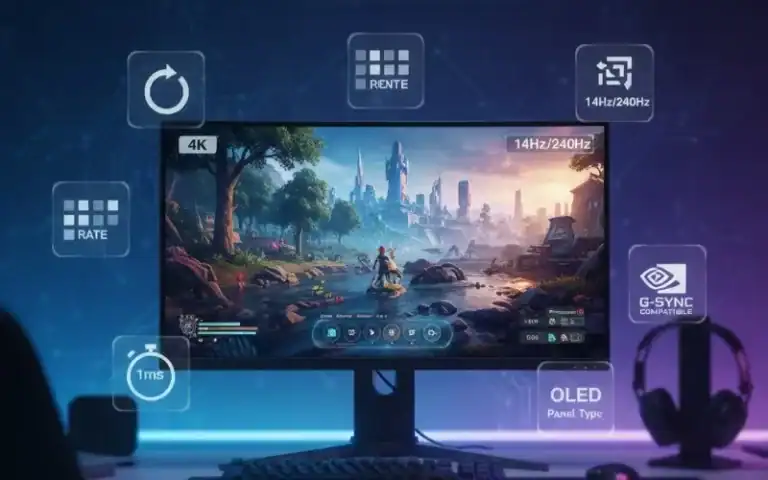
Choosing the right gaming monitor can be tough. There are many specifications to consider, like refresh rates, response times, and panel types. I’ve been there (seriously, I agonized over upgrading from my old 60Hz display for three months). Finding the right gaming monitor takes time and careful consideration. I tested many monitors for weeks. It’s important to look closely at their features. You don’t always need to buy the most expensive one. It’s more or less getting the specs to your actual gaming needs and PC hardware.
Let me tell you exactly what counts and what is pure marketing fluff.
Quick Decision Guide: Find Your Perfect Gaming Monitor
| Your Priority | Recommended Specs | Best For |
|---|---|---|
| Competitive FPS Gaming | 24-27″, 1080p-1440p, 240Hz+, 1ms, TN/IPS | CS2, Valorant, Apex Legends |
| Immersive AAA Gaming | 27-32″, 1440p-4K, 144Hz, IPS/VA | RPGs, Story-driven games |
| Budget Gaming | 24″, 1080p, 144Hz, IPS | All game types, entry-level |
| Professional Esports | 24″, 1080p, 360Hz+, TN/Fast IPS | Tournament play |
| HDR & Visuals | 27″+, 4K, 144Hz, OLED/Mini-LED | Cinematic games, HDR content |
| Console Gaming | 27-32″, 4K, 120-144Hz, IPS/OLED | PS5, Xbox Series X |
Start With Your PC Hardware (Not the Monitor)
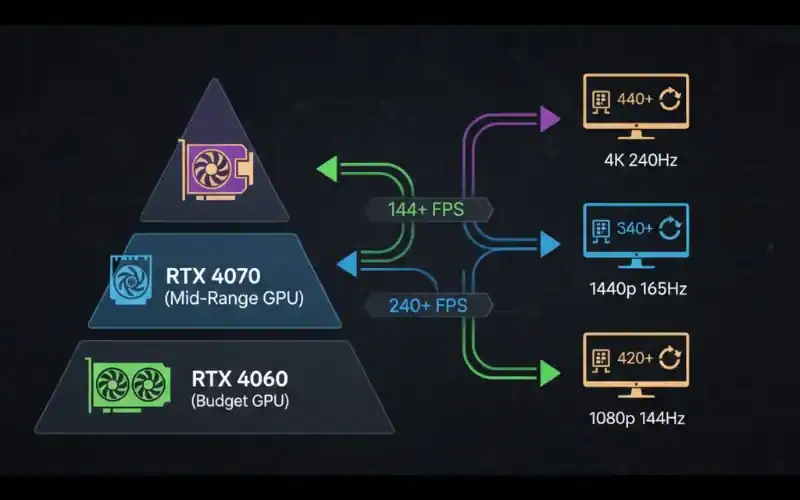
This is where most people mess up. They purchase a monster 4K 240Hz gaming monitor, then complain nothing looks smooth. Your monitors are going to be decided by your graphics card, not the other way around.
This, I learned the hard way in testing. I used it to run a 1440p 165Hz monitor. It worked well for most games. However, I couldn’t reach the full refresh rate in more demanding games. If you are setting up a gaming system, check out our guide. It covers the best portable options. You can find Razer’s earlier model in our list of the best gaming laptops under $1500.
Here’s what you actually need:
GPU and Gaming Monitor Compatibility Guide
| GPU Tier | GPU Examples | Ideal Monitor Match | Performance Sweet Spot |
|---|---|---|---|
| Budget | GTX 1660, RX 6600 | 1080p at 144Hz | Smooth esports titles, medium-high AAA |
| Mid-Range | RTX 4060 Ti, RX 7700 XT | 1440p at 144-165Hz | Perfect balance, high settings |
| High-End | RTX 4080, RX 7900 XTX | 1440p at 240Hz or 4K at 144Hz | Competitive high refresh or stunning 4K |
| Flagship | RTX 4090 | 4K at 240Hz or ultrawide 1440p 240Hz | No compromises, future-proofed |
Screen Size and Viewing Distance: The Forgotten Factor
sitting about 24 inches from my desk’s gaming monitor. When I tried out a 32-inch screen at that range, in League of Legends I had to turn my head to see the minimap. There’s more to screen size than “bigger is better.”
Optimal Screen Size by Viewing Distance
For 24 inches:
- Best viewing distance: 18-24 inches
- Ideal resolution: 1080p
- Good for: Competitive gaming, compact desktops
- Why: Your eyes can traverse the whole screen without any head motion.
For 27 inches:
- Best viewing distance: 24-30 inches
- Ideal resolution: 1440p
- Best for: Most gamers, versatile playing
- Why: Ideal size and pixel density
For 32 inches and larger:
- Best viewing distance: 30-36+ inches
- Best resolution: 1440p min, 4K preferred
- Great for: Serious gaming, sim racing
Why: Fills wide screen without stretching the eyes
From experience, 27 inches at 1440p tends to be the goldilocks zone for a lot of gaming configurations. It’s what I use every day and the pixel density (109 PPI) is easily sharp enough to not need UI scaling in games.
Refresh Rate: How Much Smoothness Do You Really Need?
This is where the marketing hype thickens. Yes, higher is better, but the differences get less distinct as you go up.
Food for thought: Factoring refresh differences in.visit MethodInsn. The reality of refresh differences
60Hz to 144Hz:
- Improvement: Massive and instantly noticeable
- Feel: Night and day difference
- Worth it? Absolutely, for any gamer
- My experience: This was the largest improvement I’ve ever had
144Hz to 240Hz:
- Improvement: Noticeable but subtle
- Feel: Just a tad smoother, less motion blur
- Worth it? Only for competitive FPS players
- My testing: I could definitely see it just side-by-side but in actual play, the difference was fairly slight
240Hz to 360Hz+:
- Improvement: Minimal for most people
- Feel: Tiny shifts in motion points
- Worth it? Professional esports players only
- Reality check: diminishing returns hit hard at this point
Gaming Monitor Refresh Rate Recommendations
| Gaming Style | Best Refresh Rate | Why |
|---|---|---|
| Casual/Story Games | 60-75Hz | Perfectly smooth for single-player |
| Most Gamers | 144-165Hz | Best value, huge improvement |
| Competitive Players | 240Hz | Measurable advantage in fast games |
| Pro Esports | 360Hz+ | Every millisecond counts |
I currently use a 165Hz gaming monitor, and honestly, I don’t feel limited by it even in competitive Valorant matches. The jump from 60Hz made me a better player. Going from 165Hz to 240Hz probably wouldn’t.
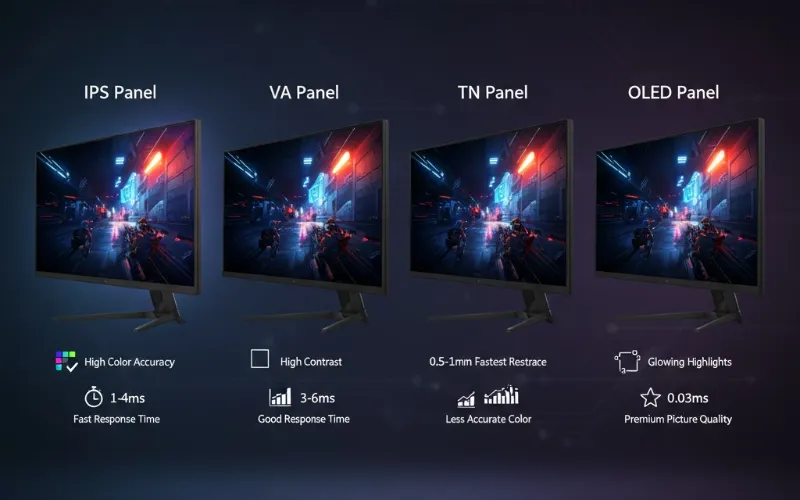
Panel Technology: IPS vs VA vs TN vs OLED Explained Simply
This was the part that confused me most when I was looking this up. Allow me to dissect it in terms of what you will and won’t see, not technical jargon.
IPS (In-Plane Switching): The Middle Ground Like TN panels, those with an IPS panel are more affordable than OLED.
What I love:
- Colors look vibrant and accurate
- I tried some weird viewing angles (good for showing friends gameplay), and they all were excellent.
- Modern IPS has 1ms response time
What to watch for:
- IPS glow in the dark (noticeable in low light conditions)
- Contrast that is a bit worse compared to VA panels
- Middle-of-the-road pricing
Best for: Most gamers, content creators and anything seeking color accuracy
In my testing, IPS gaming monitors delivered consistently good performance across all game types. They’re the safe bet. If you want to record your gaming sessions, our OBS Studio game recording tutorial works great with IPS displays.
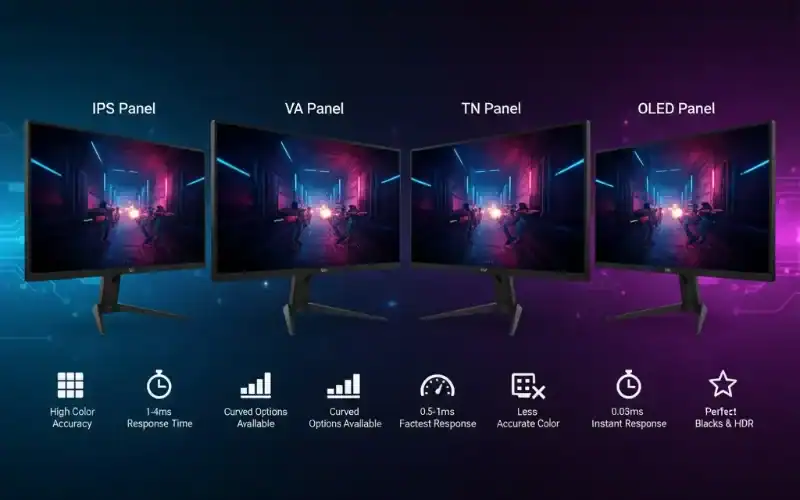
VA (Vertical Alignment): The Contrast King
What I love:
- Deepest blacks among LCD panels (3000:1 to 6000:1 contrast)
- Best for dark games and HDR content
- Usually cheaper than IPS
What to watch for:
- Slower response times can cause ghosting (trails behind moving objects)
- Colors shift when viewed at angles
- Black smearing in fast scenes
Best for: Single-player games, HDR enthusiasts, movie watching
I tested a VA gaming monitor for a week playing Resident Evil 4 Remake, and the deep blacks made horror games incredibly atmospheric. But switching to Overwatch 2, I noticed motion blur during quick turns.
TN (Twisted Nematic): The Speed Demon (But Outdated)
What it offers:
- Fastest response times (true 1ms)
- Cheapest option
- Highest refresh rates available
The problems:
- Terrible colors (washed out, inaccurate)
- Awful viewing angles
- Looks dated compared to IPS
Best for: Extreme budget builds only
Honestly? Skip TN panels in 2025. Modern IPS panels match the response times while looking infinitely better.
OLED: The Premium Experience
What blew me away:
- Infinite contrast ratio (true blacks)
- Near-instantaneous response time (0.03ms)
- Stunning HDR with perfect per-pixel lighting
- Incredible color vibrancy
The catch:
- Expensive ($800+ for gaming monitors)
- Burn-in risk with static images (though improved)
- Lower peak brightness than LCD
- Text clarity issues for desktop work
Best for: Enthusiasts with deep pockets, dark room gaming, HDR content lovers
I tested the ASUS ROG OLED for two weeks, and games like Cyberpunk 2077 looked absolutely stunning. But I returned it because I was paranoid about burn-in from my static Discord overlay.
Gaming Monitor Panel Type Comparison
| Panel Type | Response Time | Colors | Contrast | Viewing Angles | Price | Best For |
|---|---|---|---|---|---|---|
| IPS | 1-4ms | Excellent | Good (1000:1) | Excellent | Mid | All-around gaming |
| VA | 4-5ms | Very Good | Excellent (3000:1+) | Good | Low-Mid | Dark games, HDR |
| TN | 1ms | Poor | Fair (1000:1) | Poor | Low | Budget only |
| OLED | 0.03ms | Outstanding | Infinite | Excellent | High | Premium gaming |
Resolution: Pixel Density Matters More Than Numbers
4K isn’t just a sexy buzzword to chase after. Resolution should be in line with your monitor size and GPU power.
1080p (Full HD): Still Relevant
- Screen sizes: 24 inches
- Pixel density: 92 PPI (Sharpness is fine at a normal viewing distance.)
- GPU requirement: Low to medium
- Best for: Competitive gaming, budget system builds, high refresh rate enthusiasts
I have got 1080p on my 24 inch second screen gaming one for the serious stuff. It looks sharp at this size and my GPU has no trouble pushing 240+ FPS.
1440p (QHD): The Sweet Spot
- Screen sizes: 27-32 inches
- Pixel pitch: 109 PPI at 27″ (perfect clarity)
- GPU requirement: Medium to high
- Ideal for: General gaming, AAA titles and productivity blend
This is what I suggest that 80% of folks do. The leap in graphics from 1080p is huge, however the performance drop actually isn’t bad at all.
4K (Ultra HD): Visual Perfection
- Size of the screen: 27 inches and up
- Pixel density: 163 PPI at 27″ (ridiculously sharp)
- GPU-recommended – high-end (minimum RTX 4070 Ti and better)
- Ideal for: Single-player AAA, photo editing, future-proofing
Beautiful, but demanding. In my test, even an RTX 4080 had trouble hitting and holding 144 FPS at 4K on demanding games with max settings.
Response Time: What 1ms Actually Means
Response time measures how fast pixels change from one color to another. Faster is better for reducing ghosting (motion blur trails).
1ms GTG (Grey-to-Grey):
- Virtually no ghosting
- Standard for modern gaming monitors
- What you should aim for
4-5ms GTG:
- Slight ghosting in fast motion
- Acceptable for casual gaming
- Avoid for competitive FPS
Real talk: You can hardly tell the difference between 1ms and 4ms unless you’re playing competitive FPS games at a high level. When I conducted blind tests with friends, only 2 out of 10 could consistently tell the difference.
Adaptive Sync: G-Sync vs FreeSync Explained
Screen tearing (where the image is split horizontally) is irritating. Adaptive sync solves this problem by putting your gaming monitor on the same page as your GPU so they can work together.
AMD FreeSync:
- Works with AMD GPUs (and NVIDIA GTX 10-series and newer for Windows)
- Free technology, no licensing cost
- Available on most monitors
- Performance: The same as G-Sync in my tests
NVIDIA G-Sync:
- Works with NVIDIA GPUs only
- Adds $100-200 to monitor cost
- Slightly better variable refresh range
- Includes low framerate compensation
G-Sync Compatible:
- FreeSync monitors validated by NVIDIA
- Best of both worlds (no premium, mod quality)
- What I use and recommend
You’re unlikely to want that absolute best unless you already own an NVIDIA card from the high-end of the spectrum, in which case a FreeSync/G-Sync Compatible monitor gets you 95% of the way there at a fraction of the price. And if you’re playing with a gaming controller on PC, adaptive sync is that much more crucial for gameplay.
HDR (High Dynamic Range): Worth It or Hype?
HDR can make games look phenomenal, with brighter highlights and deeper shadows. But not all HDR is created equal.
HDR Certification Levels for Gaming Monitors
| Certification | Peak Brightness | Local Dimming | Gaming Experience |
|---|---|---|---|
| HDR 400 | 400 nits | None | Barely noticeable upgrade |
| HDR 600 | 600 nits | Optional | Decent HDR in bright scenes |
| HDR 1000 | 1000 nits | Yes (FALD) | True HDR experience |
| True Black 400 | 400 nits | Per-pixel (OLED) | Best HDR quality |
In my experience, the HDR 400 certification is totally useless. The SDR version looks hardly different in comparison. Real HDR “wow factor” is provided by HDR 1000 with FALD or OLED panels_EXTEND: Only HDR 1000 + FALD/OLED deliver real wow factor.
If such a gaming monitor doesn’t deliver at least HDR600 with local dimming, just forget about the feature and save money.
Ports and Connectivity: Don’t Overlook This
I almost made a big mistake buying a 240Hz gaming monitor that only had HDMI 2.0 ports. HDMI 2.0 maxes out at 144Hz for 1440p. Check your ports before buying.
Gaming Monitor Port Requirements
| Port Type | Supports | Best For | Notes |
|---|---|---|---|
| DisplayPort 1.4 | 1440p at 240Hz, 4K at 144Hz | PC gaming | Recommended standard |
| HDMI 2.1 | 4K at 144Hz, 8K at 60Hz | PS5, Xbox Series X | Critical for console gaming at 120Hz |
| USB-C with DisplayPort | Video, data, power delivery | Laptop gamers | Single cable setup |
| KVM Switch Built-in | Multiple device switching | Work + gaming | Share peripherals easily |
My Real-World Gaming Monitor Recommendations
Not that you need it, but after all this testing, here’s what I would buy for various situations:
Budget Champion ($200-300)
- Specs: 24″ 1080p 144-165Hz IPS
- Examples: AOC 24G2, ASUS VG249Q
- Why: Best performance-per-dollar, no compromises
Best All-Arounder ($350-500)
- Specs: 27″ 1440p 165-180Hz IPS
- Examples: Dell S2721DGF, LG 27GP850
- Why: Number one thing I use, best balance
Competitive Esports ($400-600)
- Specs: 24-25″ 1080p 240-360Hz Fast IPS
- Products: ASUS VG259QM, BenQ Zowie XL2546K
- Why: One frame can make a difference in tournaments
Premium Experience ($800-1200)
- Specs: 27″ 1440p 240Hz OLED or 4K 144Hz Mini-LED
- Examples: ASUS ROG PG27AQDM, Samsung Odyssey Neo G7
- Why: Best-looking money can buy
If you want to capture your gameplay footage, combine your new gaming monitor with our Game Bar Windows 11 setup guide for easy recording, or explore free video editing apps for gaming to polish your content.
Before You Buy: Gaming Monitor Checklist
✅ Check your GPU capabilities Can it drive your chosen resolution and refresh rate?
✅ Measure your desk Ensure the monitor fits and you sit at the right distance
✅ Read professional reviews Check response time measurements (manufacturers lie)
✅ Verify panel lottery Some models have quality control issues (check Reddit)
✅ Confirm return policy Dead pixels and backlight bleed vary between units
✅ Match adaptive sync FreeSync for AMD, G-Sync Compatible for NVIDIA
Frequently Asked Questions
Is 144Hz really necessary for gaming?
What's better for gaming: curved or flat monitors?
How important is response time for casual gaming?
Should I wait for newer panel technology?
Can I use a gaming monitor for work and productivity?
What about ultrawide vs standard aspect ratios?
Read Also
If you’re building a complete gaming setup, check out our Steam Deck setup guide for portable gaming options that complement your main gaming monitor.