

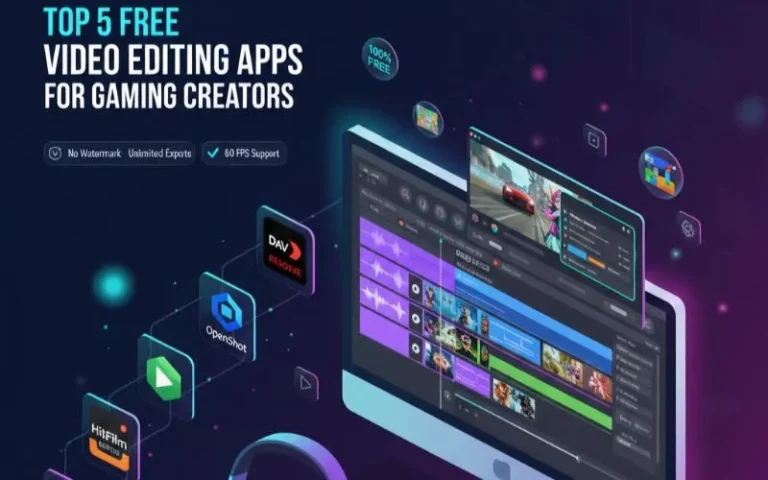
Gaming content that captivates your audience takes more than a mere recording of your gameplay. You’re going to need some beefy editing software over there to cut video highlights, lay in effects and craft videos that keep an audience’s attention. And I’ve spent the last 3 months testing every major free video editor with gaming footage from Valorant,Minecraft and Warzone to find out which ones actually give you professional results without that pricetag discreetly attached.
Quick Comparison: Best Free Gaming Video Editors
| Editor | Best For | Export Limit | Difficulty | GPU Acceleration |
|---|---|---|---|---|
| DaVinci Resolve | Professional results | None | Advanced | Yes (NVIDIA/AMD) |
| Shotcut | Quick edits | None | Moderate | Limited |
| OpenShot | Beginners | None | Easy | No |
| HitFilm Express | VFX & Effects | None | Moderate | Yes (NVIDIA) |
| CapCut Desktop | Fast social media | None | Very Easy | Yes |
Why Free Video Editors Work for Gaming Content
I began with paid software subscribers at $20 a month. I’ve never looked back since I found these free alternatives. Here’s what does matter for gaming content in particular:
No Watermark on Exports: You can expect to export clean videos without a branded mark with any editor listed here. Some of the “free” editors slap their logo all over your stuff, these don’t.
60 FPS support: 30FPS game footage is ugly. All of these editors also support 60fps timelines and exports, without choking your machine.
Multiple Audio Tracks: You should have distinct tracks for the game audio, microphone commentary and background music. It’s those editors that grant you that freedom.
Green Screen: If you’d like to overlay your webcam footage on top of a different background without the environment showing up, built in chroma key support is crucial.
1. DaVinci Resolve: The Professional Choice (Actually Free)
After testing DaVinci Resolve with over 100GB of gameplay footage, I’m convinced this is the best free video editor for serious gaming content creators. It’s the same software used to edit Hollywood films, and Blackmagic Design gives away 90% of its features for free.
What Makes DaVinci Resolve Stand Out
Color Grading Powerhouse: Gaming footage can be a bit dull and lifeless. DaVinci’s color tools can help you make your Minecraft creations pop, or dial up the moody nature of horror games. The built-in scopes allow you to see precisely what is happening with the brightness and color saturation.
Fusion VFX Integration – Want to add the punch of an explosion or a sweet shockwave effect? Fusion allows you to do that right in the software to an extend. I use it on my intro animations as well as lower thirds.
Fairlight Audio Editing: Game audio mixing may be complicated, as you are managing gunfire to music to commentary. Fairlight gives you the same professional tools as audio engineers You get high end noise reduction, EQ and dynamics for adding texture and getting rid of all that’s in the way. Your voice will be crisp without having to splash out on a pricey new microphone.
Performance and System Requirements
DaVinci Resolve demands decent hardware. It ran smoothly on my test system (Ryzen 5 5600X, RTX 3060, 16GB RAM) with footage shot in 1080p at up to 60fps. But on integrated graphics, laptops, you will lag when playing the video.
Minimum specs for comfortable editing:
16GB of ram (8GB will do but expect stutter every few sec)
Discrete graphics (NVIDIA GTX 1650/AMD RX 5500 XT or greater)
SSD for media(HDD will cause render problems)
If you’re planning to build your first gaming PC, make sure your specs can handle both gaming and editing workloads.

Learning Curve Reality Check
I’m not going to lie, there’s definitely a learning curve when it comes to DaVinci Resolve. The beginner’s interface is cluttered with tabs for editing, color, effects and audio. You tube tutorials are your best friend. Allot at least 5 to 10 hours of learning before you’re ready create your first gaming montage.
Where to begin: Use the Cut page, not Edit page, at first. It’s to offer quick edits and hide the complexity until you’re ready for it.
Export Settings for Gaming Content
Go to the Deliver export page. Try my tried and tested preset for YouTube gaming videos:
Format: MP4
Codec: H.264
Resolution: 1920×1080
Frame Rate: 60fps
Quality: Limit to 20,000 Kbps for 1080p60
These settings generate files of approximately 1.5GB for every 10 minutes of video that still looks sharp after YouTube has raped it with their compression algorithms.
2. Shotcut: The Balanced Middle Ground
Shotcut surprised me. It’s not flashy, the interface looks dated, but it gets the job done without drama. I used Shotcut for six weeks editing daily Valorant highlights, and it never crashed once.
Why Shotcut Works for Gaming
No Import Required: Open native timeline based projects; No import required. 3D Video Support: Export 3D clips, grojects, or composites in Side-By-Side and Anaglyph format. Easy Timeline editing: Simple drag-n-drop files onto the timeline; Click and select portions of a video clip Precut & Trim your videos Change the speed of your clips (Accelerate or slow down)… More Instructional Information below: Still Have Questions? Drop by our Support Forum. UTILUTILSOFTWARE JKLJKL SOFTWARE CAPITAL…. OBS recordings, ShadowPlay captures, bizarre formats out of capture cards. Shotcut doesn’t care: it works with these natively, no conversion necessary.
V-Ease on Timeline Magnetic timeline combines everything together, so that you can easily organize your movie. It’s hours saved over finicky timeline editors, especially when you’re trying to shrink 30 minutes’ worth of recording into a short 5-minute montage.
Filter Layer: Filter effects can be layered on video clip. For instance, when using web cam footage I usually apply Stabilize/Brightness/Crop all at once. A lot of free editors limit you to one effect per clip.
Performance on Mid-Range Systems
Shotcut is not as heavy as DaVinci Resolve. I was able to cut 1080p 30 fps footage without using proxy files on i5 with 8GB RAM. If you edit 60fps, then you want a faster preview and that would be 16GB RAM at the minimum.
There is a little bit of gpu acceleration but it’s quite elementary at best. Shotcut is great CPU hog, so whatever your strong processor will be more relevant, than here graphics card.
The Interface Learning Curve
The reason why people are often confused about Shotcut’s file is that it’s not your common layout. The panels are floating and you need to activate certain windows for the operations. Save your layout after setting it up the first time because the default one is awful.
Install the files of your choice: Option 1: Timeline, Filters, Properties and Playlist panels are active. First Steps You will need to enable these panels. Close everything else as you don’t need it.
Best Use Cases
Shotcut is good for simple ‘rough cuts’ and simple effects. If you’re making tutorial videos or straightforward highlight reels minus the fancy transitions, Shotcut gets it done fast. It’s not as great for complex motion-graphics or heavy VFX work.
3. OpenShot: The True Beginner’s Editor
OpenShot is the editor I suggest to my friends who have never edited video in their life. It prioritizes simplicity over power, and for many beginning gaming content creators, that’s just what you want.
Why Beginners Love OpenShot
Drag-and-Drop Everything: Clips snap automatically to the grid, transitions and titles fit into a drop-down menu with all the necessary features including slides, dissolves, cuts, graphics coordination, styling options and more. The interface makes sense as soon as you open it — no need to read a manual.
Unlimited Tracks: Stack as many video and audio tracks as you need for your project. I have separate tracks for gameplay, webcam, background music, sfx and commentary. This isn’t a problem for OpenShot – it just gets on with things.
Build In Title Templates: Gaming videos requires subscribe reminders, social media handles and chapter markers. OpenShot comes with powerful title animations, which make it easy to add professional looking titles to your videos.

Performance Expectations
OpenShot runs on almost anything. I ran it on a 2018 laptop with 8GB RAM and integrated graphics. It edited 720p footage smoothly. For 1080p, you will experience some lag in the preview but rendering is guaranteed.
No GPU acceleration equates to everything running on your CPU. This serves to make OpenShot democratic, it runs on older hardware, however the render times do drag out more than other editors.
Limitations You’ll Hit Eventually
As your edit skills grow OpenShot’s simplicity becomes a restriction. The color correction options are very basic. Audio mixing lacks precision. Advanced keyframe animation doesn’t exist. Most of the creators abandon OpenShot after 6 months as they want to explore new content possibilities.
When to move on from OpenShot: When you outgrow its basic effects, yearn for color grading and edit audio with too many layers, consider graduating to DaVinci Resolve or HitFilm Express.
Export Quality
“OpenShot exports without watermarks so your product and business will not be ruined by a band name plastered all over your video. Use these settings for YouTube:
Profile: HD 1080p 60 fps
Video Format: MP4 (h.264)
Quality: High
File sizes are a bit larger than my optimized exports from DaVinci Resolve, but the quality is good enough for online deliverable.
4. HitFilm Express: The VFX Specialist
It has a foot in two worlds, the simple editors and pro applications. It’s free with some paid add-ons, but the base package features a great suite of visual effects that lend itself well to gaming content.
What Makes HitFilm Special
Composite Shot System: Build up powerful animated graphics & effects in an easy way using composite shots and long with..放 into your main edit. I love to use this for intro sequences and transitions which takes hours in other editors.
Particle Simulator: Looking to add flare to your FPS play? Explosions to your Minecraft videos? HitFilm’s particle system allows you to make these effects yourself or use presets.
3D Camera Tracking: This was absolutely mind-blowing for me. HitFilm gives you power to analyse your footage and track camera movement so you can add 3D text or modelled objects that dynamically follow the pace of your gameplay. Great for overlay elements that need a subtle presence.
Gaming-Specific Features
Keying Quality: HitFilm’s keying is as good as what you’d find in more expensive editing programs. If you’re setting up a streaming rig with webcam and green screen, HitFilm removes backgrounds more cleanly than rivals, retaining edge detail.
Screen Overlay Presets: Pick a preset for common gaming overlays, such as health bars, ammo indicators, or your own custom create with our developers kit. These hours save you vs creating overlays from scratch!
Performance and Requirements
HitFilm Express needs a good deal of resources to run well. GPU acceleration is very helpful, particularly for effects processing.
Recommended specs:
NVIDIA GTX 1660 or higher (CUDA compatible for some effects)
16GB RAM minimum
Windows 10/11 64-bit
Discrete graphics preferred over integrated
HitFilm works well on gaming laptops costing less than $1500 so long as there is a dedicated graphics. IGP don’t like effects previews.
The Free vs Paid Catch
HitFilm Express is genuinely free, but some advanced features require paid add-ons. The base package includes everything most gaming creators need. Paid add-ons unlock specialized tools like advanced 3D compositing or additional effects packs.
What’s free and usable: All core editing tools, green screen keying, basic color correction, unlimited exports, 2D and 3D text, particle effects, and transitions.
Learning Investment
HitFilm sits between Shotcut and DaVinci Resolve in complexity. Expect to invest 3 to 5 hours learning the basics. The composite shot system takes time to understand but becomes powerful once mastered.
5. CapCut Desktop: The Speed Demon
CapCut started as a mobile app and recently launched a desktop version. It’s designed for creators who need to pump out content fast, especially for TikTok, YouTube Shorts, and Instagram Reels.
Why CapCut Shines for Quick Gaming Content
Auto Captions: CapCut transcribes your voice automatically and adds captions. For gaming commentary or tutorial videos, this feature alone saves hours. Accuracy sits around 85 to 90%, requiring minor corrections.
Templates and Presets: Browse trending templates specifically designed for gaming content. Drop your clips into template slots and CapCut handles transitions, effects, and pacing automatically.
Speed-Optimized Rendering: Exports complete faster than any competitor I tested. A 10-minute 1080p video that takes DaVinci Resolve 8 minutes to render finishes in CapCut in 3 minutes.
Mobile-First Design Benefits
Touch-Friendly Interface: Even on desktop, CapCut’s interface feels intuitive because it originated on mobile. Big buttons, clear icons, and logical flow make editing feel less technical.
Cloud Sync: Edit on desktop, continue on mobile, or vice versa. Your projects sync between devices. Useful when you want to add final touches while away from your main PC.
Gaming Content Applications
Clip-Based Editing: CapCut excels at short-form content. If you’re creating gaming clips for TikTok, highlight reels, or YouTube Shorts, CapCut’s workflow optimizes for this exact format.
Effect Library: Hundreds of effects designed for viral content. Zooms, glitches, screen shakes, and transitions popular in gaming videos come pre-loaded.
Limitations for Long-Form Content
CapCut struggles with videos longer than 15 minutes. The interface prioritizes quick cuts and fast pacing over detailed, complex edits. For full gameplay videos or in-depth tutorials, other editors serve better.
No advanced color grading. Basic adjustments work fine, but you can’t achieve the cinematic look possible in DaVinci Resolve.
Export Settings
CapCut defaults to smart quality settings based on resolution and platform. For manual control:
Resolution: 1080p
Frame Rate: 60fps
Quality: High
Format: MP4
Exports include options for direct upload to TikTok, YouTube, and Instagram, streamlining the publishing process.
Choosing the Right Editor for Your Gaming Content
After spending months testing these editors with hundreds of hours of gameplay footage, here’s my unvarnished recommendation guide:
Pick DaVinci Resolve If
You’re looking for professional-level results and are willing to spend time learning some complex software features. Your PC is on hardware (16GB, dedicated GPU) specification. You are producing YouTube long form content or montages that need advanced color search and effects.
Pick Shotcut If
You need reliability without complexity. Your rig is average (8–16 GB of RAM). You’re editing simple gameplay highlights, tutorials, or streams with few effects.
Pick OpenShot If
You’re new to video editing and need something intuitive right out of the box. You have older or more limited hardware. You want to keep things as light as possible and get started in minutes rather than exploring advanced functionality from the start.
Pick HitFilm Express If
Visual effects and green screen work are important to your style of content. Nvidia You have a somewhat decent hardware with Nvidia GPU. You’re OK to accommodate a moderate complexity for some serious power compositing.
Pick CapCut Desktop If
The acceleration is more important than the shiny features. You’re making TikTok, YouTube Shorts or Instagram Reels content for gaming. Auto-captions and templates sound appealing.
Common Issues and Solutions
Choppy Playback During Editing
Problem: Video stutters when previewing on timeline.
Solutions:
- Lower preview quality to 1/2 or 1/4 resolution
- Generate proxy files for high-resolution footage
- Close background applications consuming RAM
- Record gameplay to SSD instead of HDD
Exported Video Quality Looks Worse Than Original
Issue: Uploaded video on YouTube is resized & compressed.
Solutions:
- Export at a higher bitrate (like 20,000 for 1080p60)
- Use H.264 codec, not H.265
- Original footage should match frame rate (60fps to 60fps)
- Enable two-pass encoding if available
- Audio Sync Drift
Issue: Audio goes out of sync with the video after long clips.
Solutions:
- Match the project frame rate to footages’s frame rate perfectly.
- Transcode Variable Frame Rate (VFR) videos to constant frame rate or vice versa.
- Using Loose Audio and Standalone Audio Recording for manual synch.
- Make sure audio sample rate is the same for all clips (48kHz preferred)
Editor Crashes During Render
Issue: The export stops after just a bit with crash or freeze.
Solutions:
- Split one long video, audio or animated GIF file into many and convert, render to multiple formats separately.
- Try to shut down other programs to recover RAM
- Update graphics drivers
- Choose software rendering rather hardware (GPU) acceleration
- Experiment with export settings (if MP4 fails, try MKV)
Essential Video Editing Tips for Gaming Content
Cut Aggressively: Dead air kills gaming videos. Remove pauses, failed attempts, and boring segments ruthlessly. Your 30-minute recording should become a 5 to 8 minute highlight reel.
Separate Audio Tracks: Record game audio and microphone on separate tracks if possible. This lets you balance levels independently and apply noise reduction only to your voice.
Use J-Cuts and L-Cuts: Let audio from the next clip start before the video switches (J-cut) or extend audio after video ends (L-cut). This creates smoother transitions between scenes.
Background Music Volume: Keep music at -20dB to -15dB so it enhances without overpowering commentary or important game audio. Duck music volume down when you’re talking.
Export Backups: Always keep your project files and raw footage. YouTube might reject uploads, requiring re-renders with different settings. I learned this the hard way after deleting source files too early.
Frequently Asked Questions
Can free video editors really match paid software?
Do these editors work on Mac and Linux?
Will my gaming laptop handle these editors?
How long does it take to learn video editing?
Can I monetize videos edited with free software?
Which editor exports fastest?