

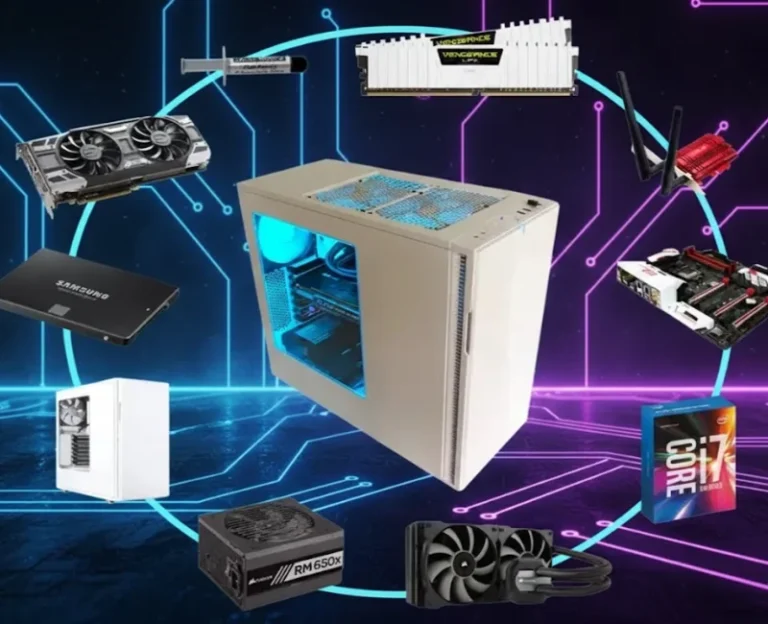
So, if you’re building your first PC to game on in 2026, here’s the summary/caution. First, set your budget and a realistic resolution. Get a good CPU and GPU. Choose a strong motherboard and power supply that fit the PCI Gen 4 era. Use big air coolers instead of narrow AIO water tubes when you can. Build your system slowly and in a planned order. Make sure some parts work together. Start with the barebones CPU, cooler, RAM, and storage, but leave out the GPU or PSU. Once you have the cooler set up, you can turn everything on. It’s riskier than it appears when you use a structured checklist.
I have instructed dozens of first‑time builders through this process on calls and in person. Those who succeed on the first attempt don’t have “magic hands” — they follow a sequence and avoid a handful of common mistakes.
Checklist: What You Really Need in 2026
Most beginner guides are still going to hit you with an overwhelming wall of part names. Let’s distill that down with a broad-strokes matrix for a 1080p/1440p gaming PC you could build in 2026.
| Feature | 1080p Value Build (Starter) | 1440p Sweet Spot (Most Gamers) | What Really Matters |
|---|---|---|---|
| CPU | Ryzen 5 / i5 mid‑range | Ryzen 7 / i7 mid‑range | 6–8 cores, modern gen |
| GPU | Mainstream card (e.g. xx60) | Stronger card (e.g. xx70/xx80 tier) | VRAM + target FPS |
| RAM | 16GB DDR4/DDR5 | 32GB DDR5 if budget allows | 2 sticks, 3200MHz+ |
| Storage | 1TB NVMe SSD | 1–2TB NVMe SSD | Space for 5–10 games |
| PSU | 650W 80+ Bronze/Gold | 750W 80+ Gold | From trusted brand |
After you figure out the column you are in, everything else is a game of how and how well things fit.
Step 1: Plan Your Gaming PC Based on Use and Budget
Before we even open a new tab for parts store shopping, what would this PC be used for? are you aiming for 1080p high settings at 120FPS or quality comparable to 1440p at 60-90FPS? Do you have a streaming or video editing practice, or are you game-only?
In my experience, newbies who neglect the process will either waste money on a chip they’ll never need, or underspend and be bitter about it until the thing hits Craigslist two years from now. List three games that you actually play, the resolution your monitor is or will be and a hard price cut-off. That’s your north star.
From there, allocate roughly:
35-40% of your budget on the GPU
20–25% to the CPU
Remaining between case, mobo, PSU, ram and storage
It’s not exact science, but it will keep you from creating a lopsided machine.
Step 2: Purchase the Right Components (So Much Easier Than You Think)
The one thing that terrifies most first‑time builders is compatibility, although the modern tools make it much less painful than in the bad old forum days.
Use a PC part picker tool to:
- Ensure that the CPU socket (AM5 vs LGA1700, etc.) matches the motherboard.
- Make sure you have the same board’s RAM type (DDR4 or DDR5).
- Make sure your case fit with your GPU length and cooler height.
- Check it has enough power supply wattage and power connectors for that gpu.
When I look at beginner parts lists, 80% of the time, it turns out that they only had some little thing wrong such as buying non‑Wi‑Fi boards when they need wireless or forgetting that tiny cases can’t swallow long GPUs. A five-minute compatibility check spares you days of frustration.
Step 3: Set Up Your Area and Tools
Establish a clean, well‑lit table that is large enough. You don’t need a lab — just enough space to open up the case and lay down the parts.
You’ll want:
- At the very least: Phillips head screwdriver (a magnetic tip is useful, but not necessary).
- Case’s accessory box (standoffs, screws, zip ties).
- The motherboard manual (to find RAM slots and front‑panel pins).
Occasionally touch a metal part of case or psu to discharge static. If you’re not on a carpet, don’t obsess over ESD straps but also don’t go rubbing socks on carpet with components in hand.
Step 4: Assembly Stages – The 5 Step Plan
| Step | Task | Key Actions |
|---|---|---|
| 1 | Assemble the Core on the Motherboard | Set the Motherboard on its box. Carefully unfold the CPU socket, set in the CPU with triangle marks uppermost and lock it without force. Lock the retention arm. Install the stock or aftermarket cooler as per its diagram, and then insert your RAM sticks into the appropriate dual‑channel slots. This “bench build” stage allows you to work without struggling against the case. |
| 2 | Install the NVMe SSD and Confirm Connection | Angle in and push down your NVMe SSD into the M.2 slot, then use the small screw to tighten it down. If the board is installed with a heatsink cover, install it back. Make sure that the CPU power and main 24‑pin power connectors on board are clearly labeled in your motherboard manual, so you aren’t guessing inside the case later. |
| 3 | Getting the Case and Power Supply Ready | Begin by taking the side panels off your case. Install the PSU so that its fan blows in a direction of good ventilation (downward if there’s a vent on the bottom, otherwise into your case). Route the big boys (24‑pin, CPU EPS, PCIe GPU, SATA if required) so they sit ready where the mobo and GPU will be. |
| 4 | Attach the Mobo and Put in the GPU | Install the I/O shield, if your board uses one separate from the case. Align the screws in your motherboard’s I/O shield with the holes in your case then lay it down atop its standoffs, making sure none of them are under where there aren’t a hole in the board (you’ll know visually), and run screws through those into each standoff to secure it. Connect the 24‑pin and CPU power cables. Then you just fit the GPU in the top x16 PCIE, screw it into place and connect its power cables. Hold the GPU while screwing to prevent it from bending. |
| 5 | Connect the Front Panel, Fans, and Perform Final Actions | Plug in the case front‑panel connectors (ie: power switch, USB, audio) using the motherboard’s manual as a guide. Connect Case Fans to the appropriate headers or fan hub. Then do a visual sweep: no screws left rattling around, major power connectors are all in place, RAM is fully clicked in. And then, finally, plug in a monitor, keyboard and power cable and boot up for the first time. |
If you notice lights and fans but no display, don’t panic. Power off, reseat the RAM/GPU and double check your monitor is connected to the GPU, not to onboard HDMI.
Step 5: BIOS, Windows and Drivers
Upon successful boot, first drop will be into BIOS.
Here’s what I advise aspiring builders to do before anything else:
Check if it can recognize the CPU, RAM and SSD.
Okay, so you can hook up XMP/EXPO and get your RAM running at advertised speed.
Put the boot device (USB installer) at 1st option.
Use a USB to install Windows and then Install straight away:
- Motherboard chipset drivers
- Nvidia, AMD or Intel GPU drivers
- Any utilities that you actually want (fan control, rgb)
If your rig booted up okay and temperatures seem reasonable under a brief stress test, you’re basically finished with the “scary” part.
Common Beginner Mistakes (And How to Avoid Them)
| Common Mistake | How to Avoid |
|---|---|
| Not hooking up the CPU power at the top of the board | Double-check the 8-pin CPU power connector near the top of the motherboard is plugged in |
| Install the mb without using any standoffs, short it out | Always use the included standoffs between the case and motherboard |
| Plugging the monitor to the mobo and not the graphics card | Connect your display cable directly to the GPU ports, not motherboard |
| Overlooking clearance: huge air coolers that impact side panels, or GPUs too long for the case | Check dimensions before buying using PC part picker tools |
If you pause at those choke points, double-check your progress against the manual, you walk around circa 90% of “dead on arrival” moments.
Newbie Builder Tips: Pro Advice for Your First Home-Built PC
Spend more on PSU and motherboard than you will believe.
It’s the cheap power supplies and ultra‑barebones boards that I’ve seen most of their early fails on. Solid 80+ bronze/gold psu and mid tier board saves headaches.
Transcend your ego and match your GPU to your monitor.
And if you have a 1080p 75 Hz panel, you’re not spending half your budget on a GPU pointed at playing esports games in native 4K. Upgrade in sync.
Give yourself at least one obvious upgrade path.
Perhaps it is another 16GB of RAM or a second NVMe drive. You can plan one easy upgrade and continue making the build “alive” to a longer extent, which is going to make your first spend last longer.
Take photos as you go.
In case things go wrong, forum or friends will be able to help you remotely if you have pictures of every step. And it’s a nice record of your first build.
Don’t worry about achieving perfect cable management on your first go.
Trying to encourage free and clear air, after all. You can always neaten up cables on a future weekend when the PC is running nicely.
FAQ: Building a 2026 Gaming PC
In 2026, is it still more affordable to build a gaming PC than buy prebuilt?
If anything, you can — especially if you’re aiming for a mainstream GPU and don’t go for one of those flashy cases with too many RGBs. You also get higher-quality parts for the same amount of money, and a clearer path to upgrade. If you’re comparing budget gaming laptops under $1500 versus desktop builds, custom desktops still offer better performance per dollar.
Is it normal that building a first gaming PC takes forever?
You should be able to handle a build given to beginners with a step‑by‑step guide in about four to six hours. That includes unboxing, assembly, first boot troubleshooting and Windows/driver installation.
Will I need expensive tools, or anti‑static gear?
No. You need as little as a good Phillips screwdriver, a clean table and some awareness about static. It’s cool if you touch the metal case every so often to discharge, and you’re golden.
Should I go with air cooling or liquid cooling for my first build?
Even just a quality air cooler should be adequate and often easier for a beginner to install and quieter than people expect, they normally are all that is needed up to mid‑range CPUs. AIO liquid coolers also introduce tubing and pump variables you don’t particularly want to think about on day one.
How much RAM will I need going forward in 2026?
For gaming and some light multitasking, 16GB still cuts it. If you’re streaming, modding heavily, or keeping a ton of browser tabs open, 32GB offers you more headroom and smoother alt‑tabbing.
What’s the single most important thing not to be such a miser about?
Power supply and motherboard. A little bit of an overbuild makes any later upgrade easier and protects the pump and other more expensive parts like your GPU and CPU from power issues.
When is it worth the upgrade over starting from scratch?
If you’ve got a relatively modern case, PSU and SSD already in your possession, it may make more sense to switch out the motherboard, CPU, RAM and GPU. When there is all or mostly old/unknown quality, new build is cleaner.
Complete Your Gaming Setup
Break this down into simple steps. Building your first gaming PC can feel easy and achievable by 2026. When you see that first successful boot screen, you’ll know your system on a level no prebuilt could ever match — and that comfort follows through to every upgrade you make from here on out.
Once your PC is up and running, don’t forget the peripherals that round out your experience. Pair your new build with quality gaming headsets under $100 for immersive audio and clear comms. A reliable mouse like the Logitech G502 Hero adds precision to your gameplay. And if you’re setting up a gaming community, optimize your server with the best Discord bots to keep your squad coordinated.